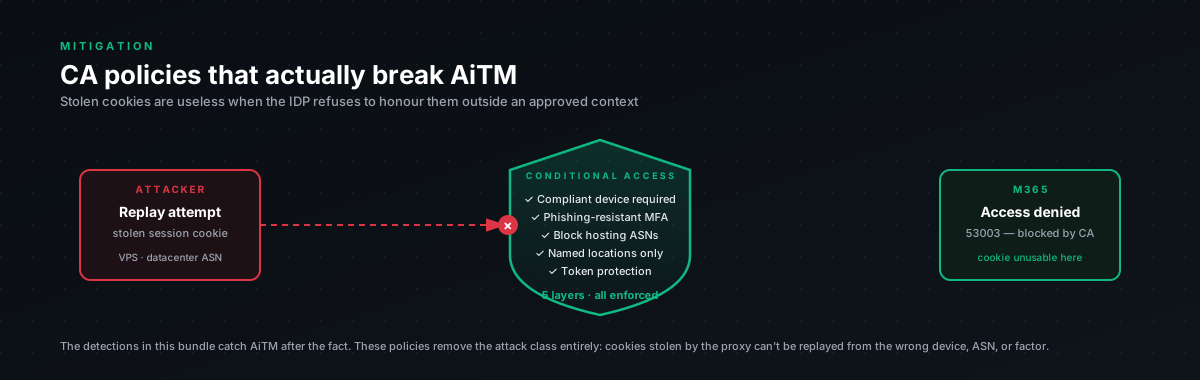
Detection is insurance. These are the actual defense.
If you only have time for one initiative this quarter, do this one. The detections in this bundle catch the attack after it succeeds. These policies, deployed correctly, mean the attack doesn't succeed at all, the attacker can capture cookies all day, but the cookies fail downstream policy checks.
Five policies. Deploy in this order:
- Block legacy authentication (easy, immediate)
- Phishing-resistant MFA (the root mitigation, biggest win)
- Sign-in frequency reduction for privileged users (easy, narrows window)
- Compliant device required for high-value apps (requires Intune coverage first)
- Token Protection (last because schema is still maturing)
Before you touch anything: break-glass accounts
Stop. Read this paragraph. Don't deploy any policy with IncludeUsers: All until you've done this.
Create two break-glass accounts. Something like breakglass1@yourdomain.onmicrosoft.com and breakglass2@. Set them as Global Admins. Use 32-character random passphrases stored in a physical safe (not password manager, out-of-band). Register a single FIDO2 key per account, store the keys in different physical locations. Exclude both from every CA policy you deploy. Set up a Sentinel alert that fires on any sign-in by either account. Test login quarterly to verify they still work.
If a CA policy goes sideways and locks the rest of your tenant out, the break-glass accounts are how you get back in. We have seen tenants get bricked by a misconfigured CA policy. The break-glass account is what saves you. This is non-negotiable.
Policy 1. Block legacy authentication
Easiest win. Deploy first because it's low-risk and immediately closes a major bypass path.
Legacy auth = protocols that don't speak modern auth + MFA. POP3. IMAP4. SMTP AUTH. MAPI/HTTP. Older Exchange ActiveSync. If a user can authenticate via these, none of your MFA matters, the attacker just falls back to "the protocol that asks for password only" and sprays.
$policy = @{chr(10)DisplayName = "Block legacy authentication"chr(10)State = "enabled"chr(10)Conditions = @{chr(10)Users = @{chr(10)IncludeUsers = @("All")chr(10)ExcludeUsers = @("<break-glass-objectid>")chr(10)}chr(10)Applications = @{chr(10)IncludeApplications = @("All")chr(10)}chr(10)ClientAppTypes = @(chr(10)"exchangeActiveSync",chr(10)"other"chr(10))chr(10)}chr(10)GrantControls = @{chr(10)Operator = "OR"chr(10)BuiltInControls = @("block")chr(10)}chr(10)}chr(10)New-MgIdentityConditionalAccessPolicy -BodyParameter $policyPre-flight check. Run this first to see who'd be locked out:
SigninLogschr(10)| where TimeGenerated > ago(30d)chr(10)| where ClientAppUsed in ("Exchange ActiveSync", "Authenticated SMTP", "POP3", "IMAP4", "Other clients", "Exchange Web Services")chr(10)| summarize Count = count() by UserPrincipalName, ClientAppUsed, AppDisplayNamechr(10)| order by Count descIf real users show up, migrate them to modern clients (Outlook desktop / mobile) first, THEN deploy. Don't lock anyone out without warning.
Policy 2. Phishing-resistant MFA
This is the headline. The control that takes AiTM off the table.
WebAuthn (FIDO2, Windows Hello for Business, passkeys) is bound to the origin. The authenticator looks at the origin requesting the signature, sees it's not login.microsoftonline.com, and refuses to sign. The user can't even fail at this, the auth flow just doesn't complete on the phishing page.
This is fundamentally different from push-notification MFA, which the attacker proxies through. WebAuthn can't be proxied. It's geometry, not policy.
$policy = @{chr(10)DisplayName = "Require phishing-resistant MFA - All Users"chr(10)State = "enabledForReportingButNotEnforced" # Start in report-onlychr(10)Conditions = @{chr(10)Users = @{chr(10)IncludeUsers = @("All")chr(10)ExcludeUsers = @("<break-glass-objectid>")chr(10)}chr(10)Applications = @{chr(10)IncludeApplications = @("All")chr(10)ExcludeApplications = @() # Add legacy apps that don't yet support FIDO2chr(10)}chr(10)ClientAppTypes = @("all")chr(10)}chr(10)GrantControls = @{chr(10)Operator = "OR"chr(10)AuthenticationStrength = @{chr(10)Id = "00000000-0000-0000-0000-000000000004" # Phishing-resistant MFA built-inchr(10)}chr(10)}chr(10)}chr(10)New-MgIdentityConditionalAccessPolicy -BodyParameter $policyRollout sequence
Don't enforce this on day one. Deploy in waves:
- Week 1: report-only mode, all users. Watch for failures.
- Week 2-3: enroll admins in FIDO2 keys. Yubikey, Feitian, whatever. Two keys per admin (one primary, one backup in a different location). Move admins to enforced.
- Week 4-8: enroll standard users. Communicate weekly. Run drop-in sessions. Have the help desk on alert.
- Week 8+: enforce on everyone.
We've shipped this in tenants of 50 users (a week of work) and 5000 users (six months of work, with a dedicated PM). Scales linearly. Budget conservatively for user enablement, the technical part is the easy part.
Real-world rollout pain points
The technical setup of FIDO2 is fine. The user issues are where it gets messy:
- Users who hate the keys. Some users feel the physical token is dystopian. ("Why do I have to carry this thing around?") Counter with: it's the only thing that's actually phishing-resistant. Push-notification MFA hasn't been considered safe by serious security teams since 2022.
- Mac users on older hardware. Some Macbooks pre-2018 don't have a Touch ID sensor that meets WebAuthn requirements. Need external hardware key.
- Linux desktop users. WebAuthn support is fine in modern browsers but USB key handling is still occasionally finicky. Test before rolling out to engineering.
- Mobile. Passkeys / Hello-equivalent on iOS and Android work great. The first-time setup confuses people. Make a 90-second video.
- Field workers / shared devices. This is genuinely hard. FIDO2 is bound to the user's device. If they share devices, you need a separate strategy (yubikey per person, plug in when they're working).
Policy 3. Sign-in frequency reduction for privileged users
Easy, immediate value. Forces re-auth for high-value accounts on a tighter cadence than the default 90-day refresh token lifetime.
$policy = @{chr(10)DisplayName = "Sign-in frequency - Privileged users"chr(10)State = "enabled"chr(10)Conditions = @{chr(10)Users = @{chr(10)IncludeRoles = @(chr(10)"62e90394-69f5-4237-9190-012177145e10", # Global Administratorchr(10)"194ae4cb-b126-40b2-bd5b-6091b380977d", # Security Administratorchr(10)"729827e3-9c14-49f7-bb1b-9608f156bbb8", # Helpdesk Administratorchr(10)"29232cdf-9323-42fd-ade2-1d097af3e4de" # Exchange Administratorchr(10))chr(10)}chr(10)Applications = @{chr(10)IncludeApplications = @("All")chr(10)}chr(10)}chr(10)SessionControls = @{chr(10)SignInFrequency = @{chr(10)Value = 4chr(10)Type = "hours"chr(10)IsEnabled = $truechr(10)}chr(10)PersistentBrowser = @{chr(10)Mode = "never"chr(10)IsEnabled = $truechr(10)}chr(10)}chr(10)}We use 4 hours for privileged users, 12 hours for users with access to high-value apps (Finance, HR, M&A document libraries), 7 days for standard users. The 7-day default is a meaningful improvement over the 90-day default and barely affects UX.
Policy 4. Compliant device required (high-value apps first)
Catches the attacker at the resource access stage. Their machine isn't enrolled in your Intune. The CA check fails on access to Exchange / SharePoint / your finance app.
$policy = @{chr(10)DisplayName = "Require compliant device - High-value apps"chr(10)State = "enabledForReportingButNotEnforced"chr(10)Conditions = @{chr(10)Users = @{chr(10)IncludeUsers = @("All")chr(10)ExcludeUsers = @("<break-glass-objectid>")chr(10)}chr(10)Applications = @{chr(10)IncludeApplications = @(chr(10)"00000003-0000-0ff1-ce00-000000000000", # SharePoint Onlinechr(10)"00000002-0000-0ff1-ce00-000000000000", # Exchange Onlinechr(10)"<your-finance-app-id>",chr(10)"<your-hr-app-id>"chr(10))chr(10)}chr(10)ClientAppTypes = @("all")chr(10)}chr(10)GrantControls = @{chr(10)Operator = "OR"chr(10)BuiltInControls = @("compliantDevice", "domainJoinedDevice")chr(10)}chr(10)}The BYOD question
This policy, scoped to all apps, blocks personal device access entirely. That's the strict version. Most orgs phase it in:
- Start with the apps that hold the most sensitive data. Exchange, SharePoint, finance.
- Once Intune coverage on corporate devices is high (>95%), expand to all apps.
- For BYOD users who legitimately need email access, require MAM (Mobile Application Management) policy as alternative to compliance, the data is containerised within Outlook mobile, can be remote-wiped, can't leak to other apps.
Don't try to deploy strict compliant-device-only on day one. We've seen orgs do it and immediately have to roll back because half their workforce uses personal phones for email.
Policy 5. Token Protection
Last because the schema and coverage have been moving. As of 2026 it's matured significantly but coverage isn't 100% across all client/app combinations.
What it does: binds issued tokens to the originating device's TPM. The token contains a TPM-signed proof. Replayed from another machine, signature check fails.
Where it works well in 2026: Windows 11 with TPM 2.0, Office desktop apps, modern browsers. Where it's weaker: macOS (improving), mobile (limited).
Deploy in report-only for at least 14 days first. The reporting will tell you which client/app combinations don't yet support TP, and you'll need to scope-exclude those before going to enforced.
$policy = @{chr(10)DisplayName = "Token Protection - Web Sessions"chr(10)State = "enabledForReportingButNotEnforced"chr(10)Conditions = @{chr(10)Users = @{chr(10)IncludeUsers = @("All")chr(10)ExcludeUsers = @("<break-glass-objectid>")chr(10)}chr(10)Applications = @{chr(10)IncludeApplications = @("Office365")chr(10)}chr(10)ClientAppTypes = @("browser")chr(10)Platforms = @{chr(10)IncludePlatforms = @("windows")chr(10)}chr(10)}chr(10)SessionControls = @{chr(10)# Schema for Token Protection has been changing, verify current shapechr(10)# in Microsoft Learn before deploying. This is approximate.chr(10)}chr(10)}The Microsoft Graph schema for Token Protection has been changing across the 2023-2026 period. Verify the exact secureSignInSession parameter shape in the latest Microsoft Learn docs before you deploy. We're not going to commit to a schema in a blog post that'll be outdated in three months.
Verifying coverage
After deployment, run this regularly:
SigninLogschr(10)| where TimeGenerated > ago(7d)chr(10)| where ResultType == 0chr(10)| summarize TotalSignIns = count(),chr(10)ProtectedByCA = countif(ConditionalAccessStatus == "success"),chr(10)FailedCA = countif(ConditionalAccessStatus == "failure"),chr(10)NotApplied = countif(ConditionalAccessStatus == "notApplied")chr(10)by AppDisplayNamechr(10)| extend CoveragePercent = round(100.0 * ProtectedByCA / TotalSignIns, 1)chr(10)| order by TotalSignIns descApps showing high notApplied are gaps in your CA coverage. Investigate why those aren't matching any policy. Usually the answer is "service principal" or "legacy auth not blocked yet", both fixable.
Realistic timeline to AiTM-resistant
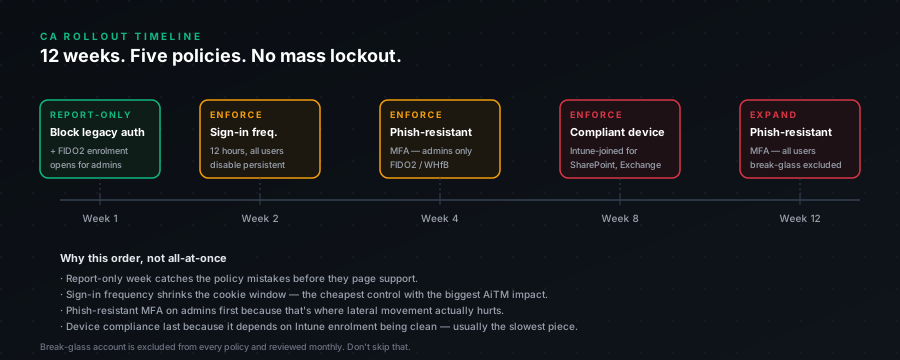
For a tenant of 100-500 users, motivated leadership, dedicated owner:
- Month 1: legacy auth blocked, sign-in frequency for admins, FIDO2 enrollment for all admins.
- Month 2: FIDO2 enrollment for all users (run drop-in sessions, have help desk ready).
- Month 3: phishing-resistant MFA enforced for everyone except known exceptions.
- Month 4-5: compliant device for high-value apps in report-only, then enforced.
- Month 6+: Token Protection in report-only, evaluate, enforce.
Tenants with thousands of users add a multiplier of 1.5-3x depending on user enablement complexity.
By month 3, your AiTM exposure is dramatically reduced. By month 6, the attack class is essentially infeasible against you for the controlled portion of the tenant.
What we don't recommend
A few approaches we've seen and don't endorse:
"Just enable Bot Fight Mode and call it done." That's network-layer noise filtering, not access control. Doesn't address the AiTM threat at all.
Deploying all five policies on day one. You will lock somebody out. The break-glass account exists for emergencies, not for normal Tuesday afternoons.
Skipping the report-only phase. Don't. The 14 days of report-only data is what tells you which exceptions to add before enforcement breaks something.
Not communicating with users. Phishing-resistant MFA is a workflow change. People need warning, options, and someone they can yell at when the new key doesn't work. Build that support layer before you flip the switch.
The technical work on these policies takes a few hours. The user enablement, communication, and exception handling takes weeks. Plan for that.