When to use this runbook
You suspect a user's LinkedIn account was compromised via AiTM phishing. Triggers that should land you here:
- User reports clicking a LinkedIn-themed phishing link
- One of the detections in this bundle fired
- User reports unfamiliar messages in their LinkedIn outbox
- User reports LinkedIn login alerts they did not initiate
- A connected account (M365, Google) shows compromise signals and the user has LinkedIn integrated
Step 0. Triage
First decide if this is AiTM or something else, because the response differs.
AiTM indicators (continue with this runbook):
- User clicked a LinkedIn-themed link from email or chat
- Login event from a cloud VPS ASN (DigitalOcean, OVH, Hetzner, Vultr)
- Login event from a Cloudflare IP (attacker proxied via CF orange-cloud)
- Login immediately followed by activity from a different geography
- User reports the LinkedIn page "looked slightly off" or asked to re-enter credentials
Password spray indicators (use a different runbook):
- Multiple failed logins before success
- No phishing link delivered
- Login from attacker IP directly, no proxy intermediary
Credential stuffing indicators (different runbook):
- Successful login on first attempt from unknown IP
- User confirms password is shared with another service that was breached
- No phishing link involved
Step 1. Containment (next 15 minutes)
All three of these in the next 15 minutes. Order matters.
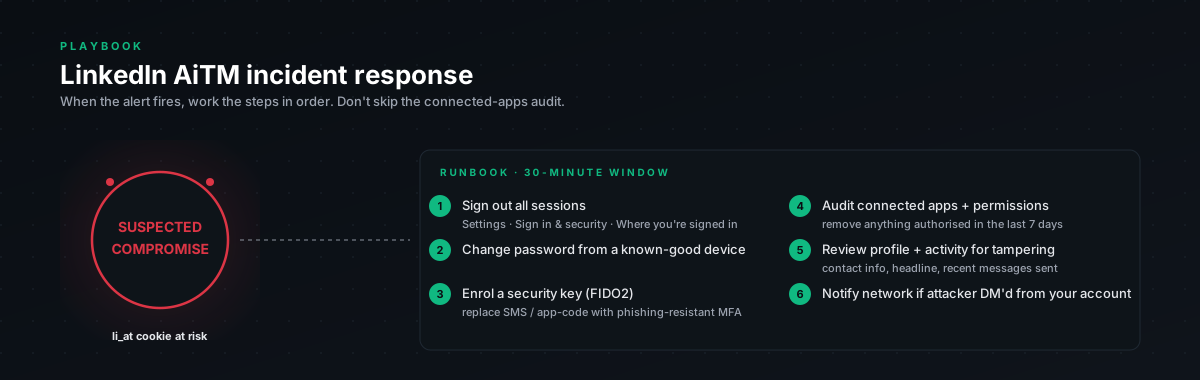
1a. Sign out of all sessions
URL: linkedin.com/psettings/sign-in-and-security → "Where you're signed in" → Sign out of all sessions
This invalidates li_at immediately. Whatever cookie the attacker captured is dead the moment the user clicks this. Do this first, before changing the password.
Reason for the order: if you change the password first, the attacker still has a valid li_at until they actively get rejected, which depending on LinkedIn's cookie validation might be hours. Signing out invalidates the cookie within seconds.
1b. Change password
URL: linkedin.com/mypreferences/security
Change to a new strong password. The user should not reuse this password anywhere else, assume the old one is in the attacker's hands and is being run against every other service the user has.
1c. Verify 2FA / passkey is configured
URL: linkedin.com/psettings/sign-in-and-security → Two-step verification
If not enabled, enable now. Passkey strongly preferred. SMS at minimum. The runbook for conditional controls covers FIDO2 setup.
If 2FA was already enabled but only SMS or TOTP, recommend upgrading to passkey within 24 hours. SMS and TOTP do not protect against AiTM, re-compromise of the account is just as easy.
Step 2. Scoping (next hour)
Now that the immediate cookie is dead, figure out what the attacker did during their access window.
2a. Recent sign-in activity
URL: linkedin.com/psettings/sign-in-and-security → Recent sign-in activity
Look for:
- Logins from cloud VPS ASNs (run any unfamiliar IPs through an ASN lookup,
whois -h whois.cymru.com "<ip>") - Logins from countries where the user has not been
- Logins within minutes of when the user clicked the phishing link, that is the attacker's first access
- Multiple logins from different IPs in a short window, attacker session vs user session
2b. Data download, what the attacker may have accessed
URL: linkedin.com/psettings/privacy → "How LinkedIn uses your data" → Get a copy of your data
Request the archive. Takes up to 24 hours but is the most complete record of activity on the account. The download will show:
- Messages sent and received during the compromise window
- Connection requests sent or accepted
- Profile changes
- Job applications submitted
- Searches run
In most LinkedIn AiTM compromises we have seen, the attacker:
- Sends spam or phishing to the victim's first-degree connections via InMail
- Exports the victim's contact list (visible as profile views and message activity)
- Applies to jobs on the victim's behalf to gather employer intelligence
- Modifies the victim's profile (contact info, headline, profile photo) to redirect future contact attempts to attacker-controlled channels
2c. OAuth applications
URL: linkedin.com/psettings/permitted-services
This is the persistence vector that survives li_at revocation and password change. The attacker can authorize a malicious OAuth app that retains access to the account through API tokens.
Go through every authorized service. Revoke anything the user does not recognize. Revoke anything authorized within the compromise window even if the name looks legitimate, attackers often spoof common app names.
2d. Pending and recent connections
URL: linkedin.com/mynetwork/
LinkedIn sometimes auto-accepts connection requests under certain conditions. Review and remove any unfamiliar connections accepted during the compromise window. The attacker may use these connections as a launchpad for downstream phishing.
2e. If the user has elevated LinkedIn access
If the user is a LinkedIn Page admin, LinkedIn Recruiter user, or has LinkedIn Marketing Solutions access:
- Audit changes to any company pages they administer
- Review LinkedIn Recruiter usage in the compromise window
- Check for unauthorized job postings
- Notify other admins of the compromise
These accounts have greater blast radius than personal accounts. Treat as higher severity.
Step 3. Notification (next 2 hours)
If the attacker sent messages from the victim's account, those recipients now think they got a message from the victim. They are at elevated phishing risk for the next several days.
3a. Identify recipients
From Step 2b's data download, identify recipients of messages sent during the compromise window. Add to the notification list.
3b. Out-of-band notification
Notify each affected recipient through a channel other than LinkedIn, email, phone, Slack, Teams. Suggested message:
t; "My LinkedIn account was compromised between [start time] and [end time].
t; Any messages from me on LinkedIn during that window should be treated
t; as suspicious. Do not click any links in those messages or act on any
t; requests they contain. If you already did, let me know so I can advise."
For high-value recipients (executives, finance contacts, customers), call rather than message. The personal touch matters and the urgency is real.
3c. Internal notification
If the user is part of an organization:
- Notify security team if not already involved
- Notify the user's manager so they understand the operational impact (the user may be temporarily unable to use LinkedIn for outreach)
- If LinkedIn Recruiter or company-page access was abused, notify the relevant business owners
3d. Notify LinkedIn
URL: linkedin.com/help → search "report compromised account"
Document the incident with LinkedIn. They will not do much, but the report builds their internal threat-intel signal and may help other users targeted by the same campaign.
Step 4. Forensic preservation (next 4 hours)
Collect evidence before LinkedIn's internal logs roll over and before the user accidentally overwrites screenshots.
# Required collection:chr(10)# 1. Screenshot the "Recent sign-in activity" page (BEFORE signing out, already done in Step 1)chr(10)# 2. Screenshot the "Where you're signed in" page (also pre-signout)chr(10)# 3. Request the LinkedIn data download (started in Step 2b, arrives in ~24h)chr(10)# 4. Note exact timestamps:chr(10)# - When the phishing link was clickedchr(10)# - When the first attacker login appears in historychr(10)# - When the last attacker activity appearschr(10)# - When containment (Step 1) completedchr(10)# 5. Save the phishing link itself (carefully, do not click again)chr(10)# 6. If you have CASB / proxy / EDR logs, export the full LinkedIn trafficchr(10)# history for the user from 30 minutes before the click to 4 hours afterKey data points for the post-mortem:
- IP addresses of attacker logins → ASN lookup confirms hosting provider
- User-agent strings → most AiTM tools use Chrome-mimicking UAs but with slight version drift
- Timestamps → correlate with phishing click to confirm causation
- Phishing domain → submit to phish.report and CF for takedown
Step 5. Root cause and prevention (next week)
The incident is over. Now prevent recurrence.
5a. For the individual user
- Enable FIDO2 / passkey on LinkedIn if not done in Step 1c, prevents future AiTM compromises cold
- Configure password manager with autofill enforcement on LinkedIn
- Bookmark
linkedin.comdirectly, never click LinkedIn links from email, chat, or other LinkedIn messages - Brief them on the AiTM pattern so they recognize it next time, the failure mode is "page looks normal but URL is wrong"
5b. For the organization
- CASB policy review, flag LinkedIn logins from datacenter ASNs going forward (see detection bundle)
- Enforce SAML SSO for LinkedIn if you have LinkedIn Enterprise products
- Add the attacker's phishing domain to your email gateway blocklist, the campaign may be ongoing against other employees
- Brief the broader team on the AiTM pattern with anonymized details from this incident
- Review whether other users in the same role / business unit clicked the same link, campaigns are often multi-victim
5c. Update detections
Whatever the attacker did during this incident (specific ASN, specific user-agent, specific timing patterns) update your detections to catch the same pattern faster next time. The TTPs are now known to you. Do not waste them.
Step 6. Close
Confirm before closing the incident:
- [ ] All sessions signed out
- [ ] Password changed
- [ ] FIDO2 / passkey enabled (or scheduled within 24h)
- [ ] OAuth apps reviewed and unauthorized revoked
- [ ] Affected message recipients notified
- [ ] Forensic evidence collected and preserved
- [ ] Post-mortem written for internal team
- [ ] Detection updated with any new IOCs from the incident
- [ ] Phishing domain reported to LinkedIn and added to org blocklist
- [ ] Org-wide brief sent if more than one user was targeted in the same campaign
Timeline reference
From the live research engagement that produced this bundle:
- T+0, victim clicks lure
- T+2s, login form loads (proxied)
- T+30s, credentials captured at proxy after victim submits
- T+30s, pre-auth cookies captured (
li_rm,JSESSIONID,bcookie) - T+35s, reCAPTCHA challenge presented (only if IP is suspicious)
- T+35s, captcha-solving service engaged
- T+45s to T+2min,
li_atissued and captured - T+2min onwards, attacker begins using captured session, depends on their speed
- Weeks,
li_atvalidity window if not revoked
Implication: if the user reports a suspicious login and you contain within 5 minutes of the phishing click, the attacker may not have had time to do much. If containment is hours later, assume full session use occurred and audit accordingly.
Quick reference card
IMMEDIATE REVOKE: linkedin.com/psettings/sign-in-and-security → Sign out allchr(10)CHANGE PASSWORD: linkedin.com/mypreferences/securitychr(10)OAUTH APPS: linkedin.com/psettings/permitted-serviceschr(10)LOGIN HISTORY: linkedin.com/psettings/sign-in-and-security → Recent sign-in activitychr(10)DATA DOWNLOAD: linkedin.com/psettings/privacy → How LinkedIn uses your data → Get a copychr(10)PASSKEY SETUP: linkedin.com/psettings/sign-in-and-security → Two-step verification → Add → PasskeyPrint and tape next to the SOC monitor. The first 15 minutes are where the dwell time gets controlled.